How to Animate Text in Different Languages on iPhone
To animate text in another language on iPhone, enter the words with the appropriate keyboard in Anitalk, use parentheses or braces for changing characters, group fixed and changing content with square brackets, and preview every frame before sharing. Anitalk works from the characters you type; verify the particular script and layout on your device rather than assuming identical rendering everywhere.
{[ありがとう (✨🌟)]}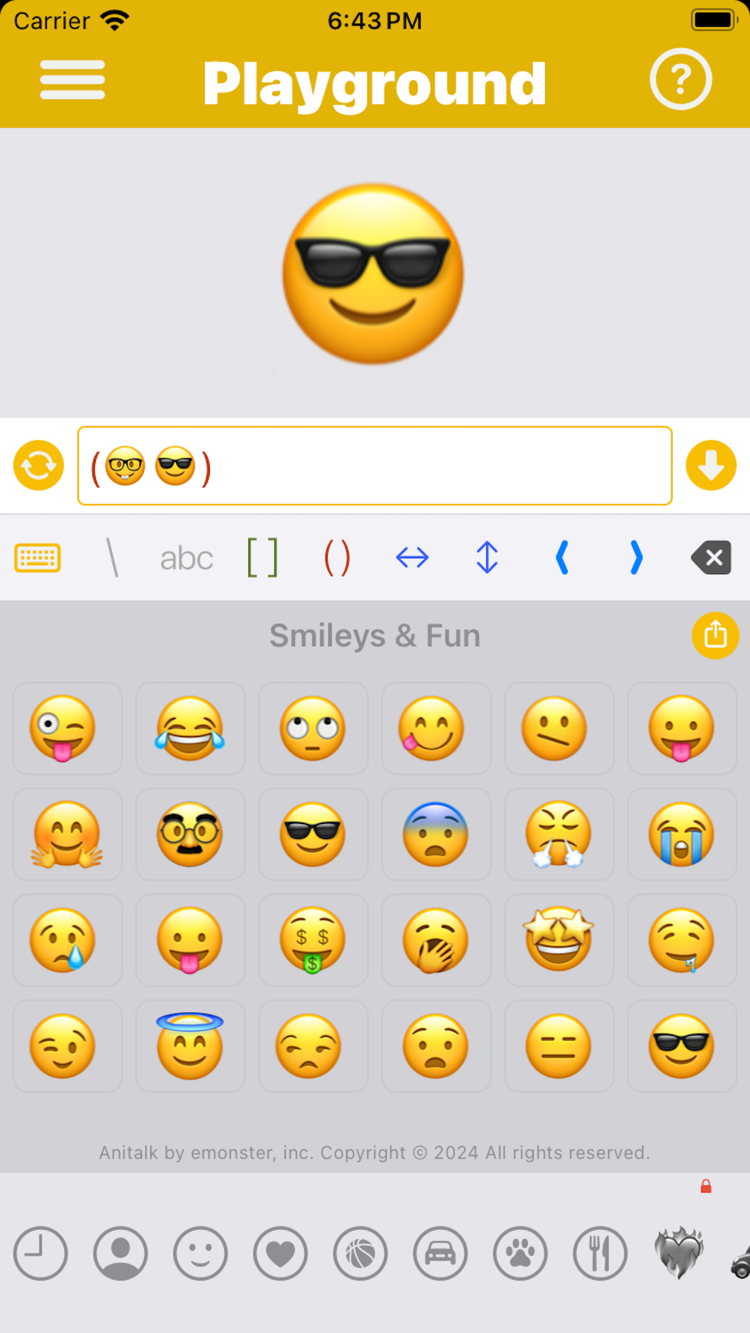
Create it in Anitalk
Type the real phrase
Use the language keyboard and wording you would normally send. Confirm spelling, punctuation, and direction before introducing motion; animation should not hide a language error.
Animate a small element
Keep the complete phrase fixed and sequence an emoji or symbol first. For example, {[ありがとう (✨🌟)]} retains the Japanese thank-you while the final accent changes.
Preview the script carefully
Review every frame for character shaping, line breaks, direction, and spacing. If a sequence splits a unit that should stay together, animate a separate symbol instead.
Share and verify the destination
Export APNG, GIF, or WebP and share from Messages or the system share sheet. Test the destination when exact rendering matters because receiving apps can process animated formats differently.
Animate the characters you actually use
Anitalk creates frames from text, symbols, and emoji, which makes it possible to compose messages from different keyboards and to mix scripts in one message. The practical starting point is not a claim of universal language coverage; it is the exact set of characters you can enter and preview on your device.
Write the complete message first. If it looks correct as text, add movement to one safe element such as an emoji, star, or punctuation mark. This preserves the phrase while you learn how the sequence behaves. It is especially useful for greetings, thanks, and names that should remain readable through the entire loop.
- Use the appropriate system keyboard for spelling and punctuation.
- Keep joined or context-sensitive text together when possible.
- Use emoji or symbols as the first animated element when the phrase itself should not split.
Create a multilingual frame without breaking the phrase
Try {[ありがとう (✨🌟)]}. The Japanese phrase stays fixed while the parenthesized symbol sequence advances. Square brackets group the fixed phrase and current symbol into each frame. You can substitute gracias, merci, danke, grazie, 고마워요, a person’s name, or another phrase you type and have verified.
Parentheses and braces create sequences. Avoid placing a multi-character word inside a sequence until you understand that its characters will advance as frames. Adjacent nested sequences inside square groups can run in parallel, but coordinated multilingual layouts deserve extra preview attention. Anitalk’s native syntax tests are authoritative for behavior.
{[ありがとう (✨🌟)]}Check direction, shaping, and spacing in the preview
Different scripts have different visual rules. Right-to-left direction, combining marks, joined characters, vertical expectations, or word-breaking behavior can make a theoretically valid character sequence a poor animation. Do not rely on a generic promise; inspect what Anitalk actually previews for your phrase.
If a word loses its intended shape when characters advance individually, keep that word fixed and animate a separate emoji or symbol. If mixed scripts reorder in an unexpected way, simplify the frame or separate the ideas. The goal is respectful, readable communication, not motion at the expense of the language.
- Read every frame as a fluent reader would.
- Check punctuation placement and text direction.
- Prefer a fixed phrase when character-by-character animation changes meaning.
Send the final multilingual animation
Once every frame is correct, share through the Messages extension or system share sheet. The recipient does not need Anitalk. Choose among APNG, GIF, and WebP based on the receiving destination, and send a test if the exact script rendering is important.
Anitalk requires iOS or iPadOS 26 or later. It has no account requirement and no ads, so you can move directly from phrase to preview. Download the app when you want the language you actually use—not a generic English template—to be the center of the animation.
Questions about animate multilingual text
Short answers based on Anitalk’s current behavior.
Can Anitalk animate text from another iPhone keyboard?
Anitalk works from the text, symbols, and emoji you enter. Type the phrase, then confirm the specific characters and layout in the preview.
Can I mix languages and emoji in one animation?
Yes. Keep the multilingual phrase fixed and sequence an emoji or symbol, then inspect every frame before sharing.
What if letters join or reorder unexpectedly?
Keep the affected word fixed, animate a separate character, and simplify the grouping until the preview preserves the intended reading.
Does Anitalk send my multilingual text to analytics?
No. The text and syntax you type are excluded from Anitalk website analytics.
Make your next message move.
Create the frames, preview the result, and send something only you would write.


Free on the App Store · iOS 26 or later